GIF Maker, Video to GIF Editor
- 4.4
- Rating
- 5.00M
- Installs
- Free
- Price
 Analysis by App-foxy
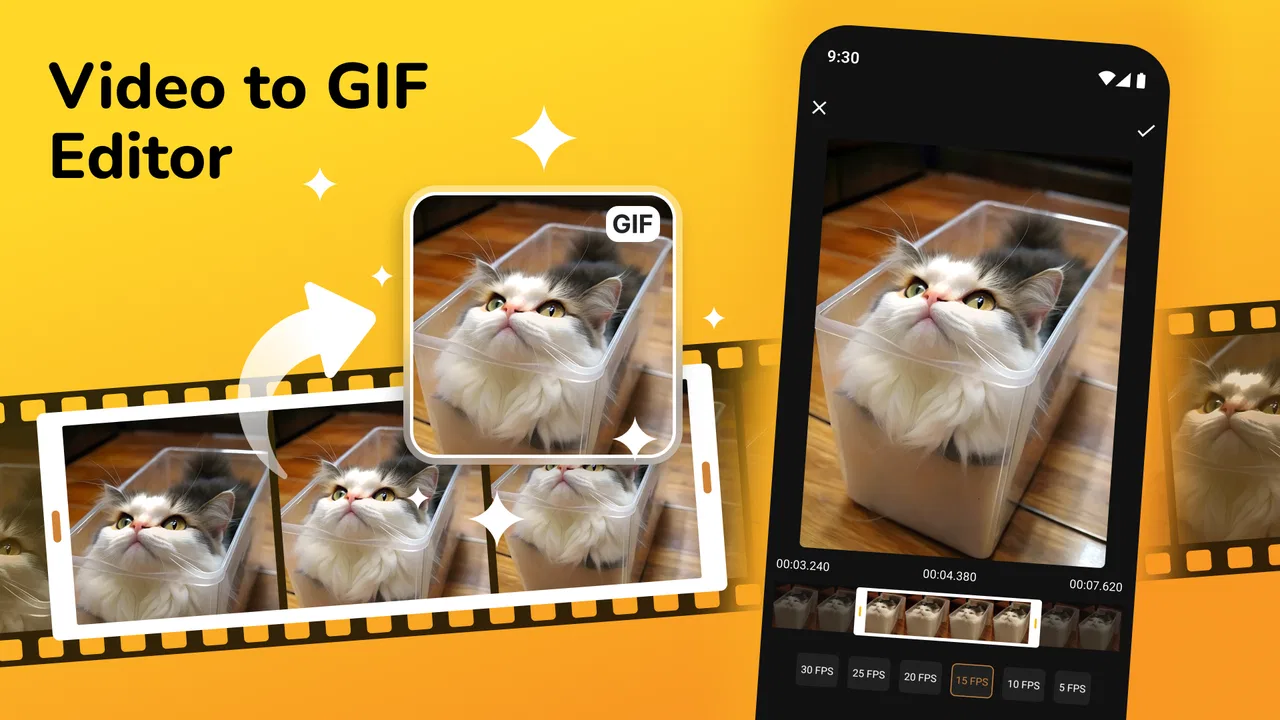
When I want to turn a short clip into something easy to share, I usually prefer a focused tool over a full video editor. GIF Maker, Video to GIF Editor takes that narrower approach. It is a free photography app from Galaxy studio apps that concentrates on making GIFs from video, with the practical advantage of exporting without a watermark. I found that focus useful because it keeps the basic task understandable instead of surrounding it with a large timeline and a long list of unrelated editing controls.
The app is aimed at ordinary Android users rather than professional motion designers. Its Everyone age rating makes sense for a tool built around personal photos and videos, and it runs on Android 8.0 or later. The current version is 2.0.4, while its public release history begins on December 4, 2021. With a 4.6 average from roughly 53 thousand ratings and more than a million installs, it has clearly attracted a sizable audience, although popularity alone is not a reason to hand over every photo or video without thinking.
What using GIF Maker feels like in practice
The first thing I noticed is that the app is best understood as a quick conversion workspace. I would not open it expecting the deep composition tools of a desktop editor. Instead, I use it when I already have a suitable video and want to isolate the moment that matters, turn it into a looping image, and share it without a branded mark covering the result.
You May Also Like

 Google Keep - Notes and lists
Google Keep’s Quiet Growth Shows the Appeal of Simpler Notes
As mobile work gets busier, Google Keep keeps winning a simple contest: capture a thought quickly, find it later, and get on with the day.

 Blood Strike: 2.5 Anniversary
Blood Strike’s Loadouts Turn Every Drop Into a Tactical Gamble
A close look at Blood Strike’s custom loadouts: how fast access to signature weapons reshapes its battle royale rhythm, rewards preparation, and narrows the gap between fights.

 Pandora - Music & Podcasts
Pandora’s Music Is Easy to Start, but Harder to Recover
Pandora’s strength is its low-effort path from a seed to a station. Its weak spot is how much confidence it asks you to place in connection, setup, and quiet recovery.

 8 Ball Pool
 Is Built on Rivalries, Rematches, and Routine
A close look at the rivalries, rematches, shared routines, and unanswered safety questions that turn a quick pool match into a persistent mobile community.

 Samsung Music
’s Quiet Strength Is Playing What You Already Own
Its reach comes less from spectacle than from dependable access to a personal library. That simplicity is both the app’s strongest retention engine and its ceiling.

 AccuWeather: Weather Radar
AccuWeather Review: A Quick, Clear Forecast for Everyday Decisions
For everyday plans, the best forecast is the one you can understand quickly. AccuWeather makes rain timing, radar, and local conditions easy to act on, with a few trade-offs.
More From Our News Desk



That makes it particularly convenient for short reactions, a funny movement captured at home, a small product demonstration, or a memorable moment from a trip. A GIF does not need the full context of the original recording. The strongest results usually come from a compact action that is understandable when repeated, such as a wave, a jump, a pet turning toward the camera, or a quick before-and-after gesture.
My practical advice is to choose the source clip before opening the editor. A long recording with several unrelated moments creates more work and usually produces a less readable GIF. If I first trim the idea mentally—“this three-second reaction” rather than “the entire conversation”—the conversion process becomes much easier. This is one of the app’s real strengths: it encourages a single-purpose result instead of making me build an elaborate project.
Choosing the right source video
Not every video translates well into a looping image. Clips with a stable camera and one clear subject tend to look better than shaky footage or scenes with constant background movement. I also avoid recordings with tiny details, because GIFs are most useful when the motion remains obvious after compression and when viewed in a chat window.
A useful workflow is to duplicate the original video before editing. I keep the untouched file in my gallery and use the copy for conversion. That habit matters because a GIF is a different format and is not a replacement for the original recording. If I later want to create a shorter loop, change the selected moment, or use the clip in another project, the source remains available.
For social sharing, I also check the first and last frames carefully. A loop feels polished when the ending flows naturally back into the beginning. If the action stops abruptly, the repeated jump can feel distracting even when the video itself is good. I often select a moment where the subject returns close to its starting position, or I choose a movement that looks intentional when repeated.
Why the no-watermark result matters
The absence of a watermark is more important than it may sound. A branded corner can make a personal joke look like an advertisement, and it can interfere with captions or the subject of the image. For people making GIFs for messages, community posts, classroom material, or small online projects, a clean frame is a practical benefit rather than a cosmetic luxury.
Still, watermark-free output does not automatically mean the result is perfect. The source video, selected duration, and export choices still determine whether the GIF looks sharp or becomes unnecessarily heavy. I would treat the clean export as a starting advantage, then pay attention to framing and motion rather than assuming the app can rescue a poor recording.
Everyday use: turning a phone video into a reaction
A realistic example is a family group chat. Someone records a dog tilting its head after hearing an unusual sound. I would open the clip, select only the head movement, and create a short loop instead of sending the full video. The GIF communicates the reaction immediately, takes less effort for relatives to view, and avoids adding a visible app mark.
The same workflow works for a friend’s exaggerated celebration after winning a board game, a child blowing out candles, or a brief demonstration of how a physical object moves. In each case, the value comes from editing down to the recognizable action. The app is not replacing a complete video message; it is helping me turn one small visual beat into something repeatable and easy to post.
For a business or creator, I would be more selective. A clean GIF can work well for a simple product movement or a looping detail on a page, but I would not rely on a phone conversion app for a campaign that needs exact dimensions, color management, accessibility planning, or a carefully controlled file size. That is where a more advanced editor or desktop workflow becomes the better choice.
Trust, permissions, and control while working with personal media
Photography apps deserve a little more attention than their simple interfaces suggest because they often handle private images and videos. My approach with this app is cautious but practical: I grant only the media access needed for the current task, review Android’s permission prompts, and avoid selecting unrelated files. The visible choice I make at that moment matters more than a general assumption that every editing app treats a gallery the same way.
If Android offers a limited or selected-photo option, I prefer that over broad access when it is suitable for the task. It lets me keep the working set narrow: one source video, perhaps a backup copy, and nothing else. I also revisit permissions later through the phone’s settings if I no longer use the app. That is a sensible habit for any tool that touches a camera roll.
I would not interpret a smooth import screen as proof that the app has no data practices worth considering. The responsible way to evaluate trust is to watch the permission prompts, read the app’s current privacy disclosures in the store, and notice whether the choices presented are clear. I do not assume that a free download tells me everything about handling, storage, or sharing of media. Those are areas where I want explicit information rather than guesses.
What to check before importing sensitive footage
I would be especially careful with videos containing children, identification documents, private conversations, home interiors, or other people who did not expect their image to be edited. Even if the intended GIF is harmless, the source file may reveal more than the final loop. Before importing, I ask whether the clip needs cropping, whether the background exposes personal information, and whether everyone shown is comfortable with it being shared.
After exporting, I check where the new file appears and whether the original remains untouched. I also remove temporary copies I no longer need. This is not a criticism unique to GIF Maker; it is simply good media hygiene. A conversion tool can make sharing easier, so it is worth slowing down for a moment before pressing send.
Account control is another practical consideration. I prefer tools that let me complete a basic conversion without forcing a social profile or a public upload. In my use, I judge the experience by the choices shown on the device: whether I can select local media, decide when to export, and choose where to share. I would still inspect any sign-in request or cloud-related prompt rather than accepting it automatically.
Free access and optional spending
The app is free to download and use, but it includes in-app purchases ranging from $0.99 to $99.99 per item. That wide range is a reason to look carefully at the purchase screen before confirming anything. I do not treat an optional payment as a problem by itself, yet I want to know what is being offered, whether it changes the editing experience, and whether the free path already meets my needs.
For occasional GIFs, the no-cost route may be enough, especially if my main requirement is a clean conversion from a short clip. Someone who creates GIFs frequently should compare the value of any purchase with the alternatives already available on the phone. A payment is easier to justify when it removes a recurring annoyance, but I would not buy simply because a larger package is displayed prominently.
Families should also use the device’s purchase authentication controls. A photography tool can be harmless in content while still presenting paid options, so I keep confirmation enabled and avoid leaving a payment method available for accidental taps. This gives me more control without making the app harder to use.
Where it is stronger than usual alternatives
Compared with a full video editor, GIF Maker, Video to GIF Editor feels less intimidating for one narrow job. A conventional editor may offer layers, audio, transitions, color adjustments, and a timeline designed for longer productions. Those features are valuable when I am making a video, but they can slow me down when I only need a looping image. This app’s focused purpose is the reason I would recommend it to a beginner.
It also has a practical edge over sending a short video when the recipient wants something instantly repeatable. A GIF can communicate a reaction without sound and can be viewed in places where a video feels excessive. The clean export is another advantage over tools that stamp their identity onto the frame.
On the other hand, a dedicated animation editor may be better for someone who starts with still images, needs precise frame control, wants text animation, or works with a carefully defined output size. A messaging platform’s built-in GIF search is faster when I do not need to use my own footage at all. And if the source is already a high-quality video that should preserve sound, detail, and duration, I would send the video rather than convert it.
Limitations I would consider before recommending it
The focused design can become restrictive when the project grows. I would not choose this app for a polished promotional sequence, a long tutorial, or a composition that needs several visual elements timed together. The more I want to control the result beyond basic conversion, the more likely I am to outgrow it.
GIF itself has technical limits too. Repeated motion can look rougher than the source video, and a visually busy clip may become less pleasant after conversion. Large or lengthy exports can also be inconvenient to share, so I keep the selected action short and check the finished file before posting it widely. The app makes creation easier, but it cannot remove the format’s trade-offs.
Another limitation is that a simple workflow does not necessarily teach good editing decisions. A new user may select too much footage, keep an unhelpful beginning, or choose a scene with no natural loop. I recommend making a first test with a very short segment, watching it repeat, and then adjusting the start and end points. That small review step often improves the result more than adding extra effects would.
Who should use it, and who should skip it
I think it is a good fit for Android users who want a straightforward way to make personal GIFs from videos, especially those who dislike watermarks and do not want to learn a complete editing suite. It is also suitable for casual creators who need a quick visual for a chat, a community post, or a simple presentation.
I would be less enthusiastic about recommending it to professional editors, people who need advanced animation controls, or anyone whose work depends on exact export specifications. Users who are uncomfortable reviewing media permissions or purchase prompts should also take a moment to understand those choices before importing private material.
My strongest recommendation is to keep expectations realistic: think of it as a convenient conversion tool, not a miniature production studio. When the task matches that description, the focused workflow and watermark-free result are genuinely useful. When the task involves detailed design, audio, long-form editing, or sensitive media that should never leave tightly controlled storage, another workflow may be safer and more capable.
My cautious verdict
After using it as a focused photography utility, I see GIF Maker, Video to GIF Editor as a practical option for quick, clean loops. Its free entry point, Everyone rating, Android 8.0 support, and straightforward purpose make it approachable, while the absence of a watermark gives the finished file a more personal appearance. The app has earned a 4.6 average and passed a million installs, which suggests that many users find this narrow job worthwhile.
My advice is to use it deliberately. Select only the clip you need, preserve the original video, inspect the loop before sharing, and review every permission or purchase choice shown on your device. I would choose it for a funny family reaction or a small visual demonstration, but switch to a fuller editor when precision becomes important. The best reason to install it is not that it does everything; it is that it makes one common task feel manageable without putting a watermark on the result.
FAQs for GIF Maker, Video to GIF Editor
01What are the main features of the GIF Maker, Video to GIF Editor app?
The GIF Maker, Video to GIF Editor app offers a variety of features, including the ability to convert videos to GIFs, edit GIFs with text and stickers, and adjust playback speed. It also supports multiple file formats and allows you to share your creations directly to social media. This makes it a versatile tool for anyone looking to create engaging GIF content.
02Is the GIF Maker app easy to use for beginners?
Yes, the app is designed with user-friendliness in mind, featuring an intuitive interface that makes it easy for beginners to create and edit GIFs. Step-by-step guides and tutorials are available within the app to help new users navigate its features efficiently, ensuring a smooth experience even for those with no prior editing skills.
03Are there any in-app purchases or ads in the GIF Maker app?
The GIF Maker app is free to download and use, but it does include in-app purchases for additional features and premium content. Users may also encounter ads, although they are generally unobtrusive. Purchasing the premium version can remove ads and unlock all features, providing a seamless editing experience.
04What file formats are supported by the GIF Maker app?
The GIF Maker app supports a wide range of file formats, including MP4, AVI, and MOV for video inputs, and outputs in GIF format. This flexibility allows users to work with various media files easily. Additionally, the app ensures that the quality of the converted GIFs is maintained, providing high-resolution results.
05Can I share my GIFs directly from the app?
Absolutely! The GIF Maker app includes built-in sharing options that allow you to post your creations directly to popular social media platforms like Instagram, Facebook, and Twitter. This feature makes it convenient for users to share their GIFs with friends and followers, enhancing your digital communication.
Pros
- Intuitive interface for easy navigation.
- Fast conversion from video to GIF.
- Supports multiple video formats.
- Includes editing tools for customization.
- No watermark on output GIFs.
Cons
- Limited free version features.
- Occasional ads during use.
- Lacks advanced editing options.
- Export quality can vary.
- File size limitations on export.

GIF Maker, Video to GIF Editor
Gallery